Turn modules on and off
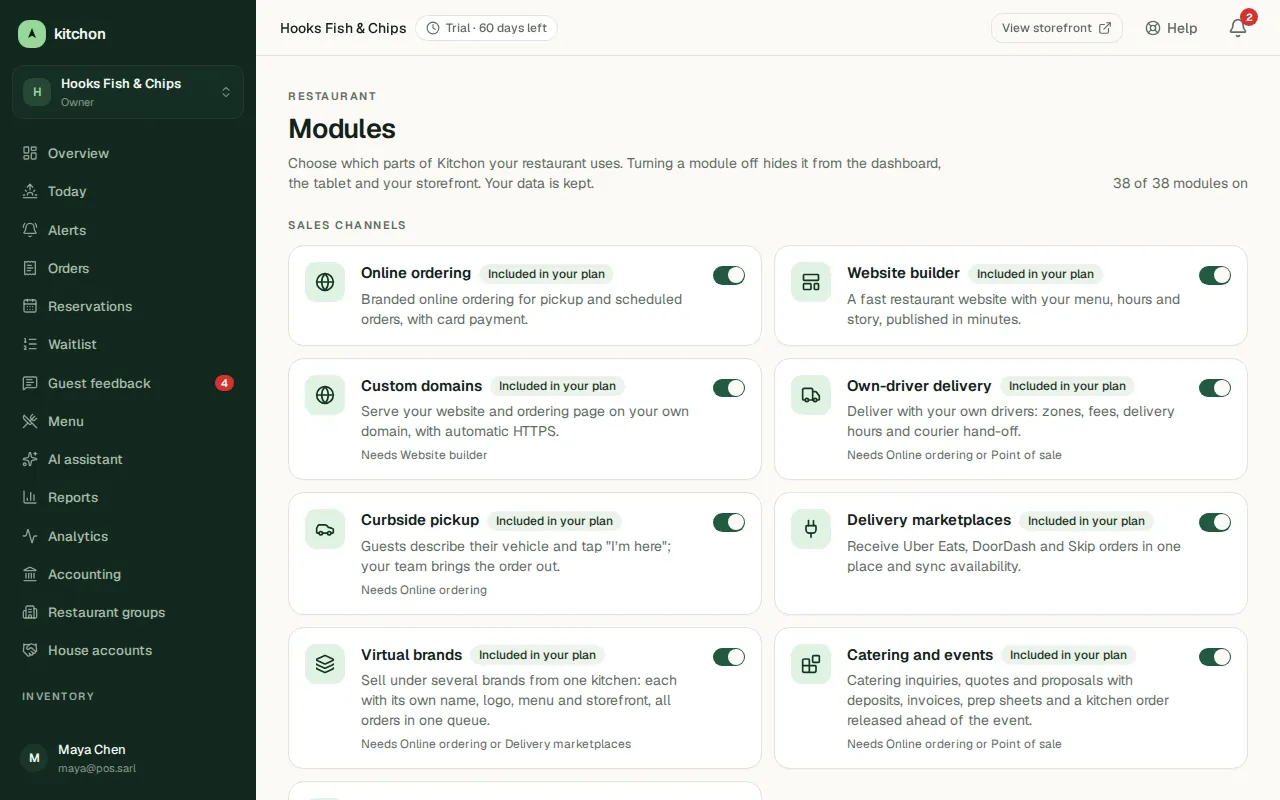
Use the Modules page to choose what your restaurant uses.
Updated November 17, 2026
Open the Modules page
Open Modules in the dashboard menu. You will see every module, grouped by what it is for.
Turn a module on or off
- Find the module and use its switch.
- If it needs another module first, the card says "Turn on the module it needs first". Turn that one on first.
- When you turn a module off, the page lists the other modules that depend on it and will stop working too. Click Turn off to confirm.
Turning a module off hides it from the dashboard, the tablets and your website. Your data is kept, so you can turn it back on later.
A module is locked
If your plan does not include a module, its card has no switch. Click Request this module and our team will get back to you.
What you will see
Menu entries and tablet modes of a module appear when it is on, and disappear when it is off.
Common problems
- A module will not turn on. It needs another module. Turn on the module named on the card first.
- The switches are greyed out. Only the workspace owner can turn modules on or off. Managers can see the page. Ask your workspace owner.