Install the Android tablet app and pair a tablet
Put Kitchon on an Android tablet and link it to your restaurant with a one-time code.
Updated November 17, 2026
What you need
- An Android tablet (Android 8 or newer; a 10 inch tablet is best). See Supported tablets. On an iPad, open the browser version instead.
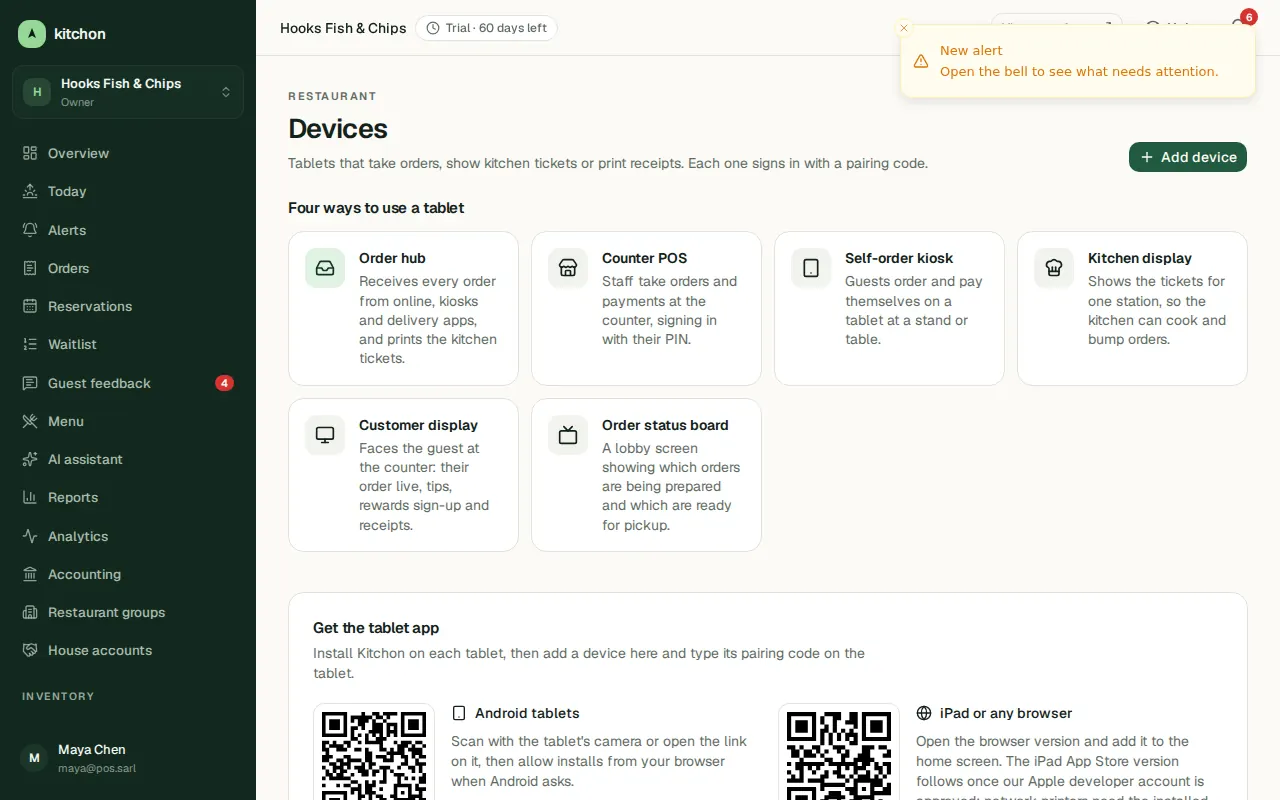
- The Kitchon app. In the dashboard, open Devices: the Get the tablet app section has Download for Android and a QR code you can scan with the tablet's camera.
- A Wi-Fi connection.
Install
- On the tablet, open the download link (or scan the QR code) from the Devices page.
- When Android asks, allow installing apps from your browser.
- Open the Kitchon app.
Pair the tablet
- In the dashboard, open Devices and click Add device.
- Give the device a Device name and choose a location. Under What is this tablet for?, choose its mode: Order hub, Counter POS, Self-order kiosk, Kitchen display, Customer display or Order status board.
- Click Create pairing code. A code of 8 characters appears. Type it on the tablet and tap Pair this tablet.
- The tablet shows your restaurant. It is ready.
Common problems
- The code is refused. It may have expired, or it was typed with a wrong character. Create a new one.
- The screen goes dark. The app keeps the screen awake. Keep the tablet plugged in.
- I need a different mode on this tablet. In Devices, choose Edit on the device and change its Mode.
Was this helpful?
Related articles
- Supported tabletsWhich Android tablets to buy or reuse, and how to lock a kiosk.
- Set up printers and routingConnect a network printer and choose which tickets print where.
- Welcome to KitchonWhat Kitchon does and the ten steps to your first order.
- Create your accountSign up, confirm your email and start your free trial.