Table service
For full-service restaurants: a floor plan, seating, open checks, firing courses, splitting the bill and letting guests pay from their phone.
Updated November 17, 2026
What it does
For full-service restaurants: a floor plan, seating, open checks, firing courses and splitting the bill. With Pay at the table, guests can scan a QR code on the printed check, see their bill, split it, add a tip and pay by card from their own phone.
Turn it on
- Open Modules in the dashboard menu.
- Find Table service in the list and switch it on.
This module needs Point of sale to be on first.
If your plan does not include this module, its card has no switch. Click Request this module and our team will get back to you. See Turn modules on and off.
Use it day to day
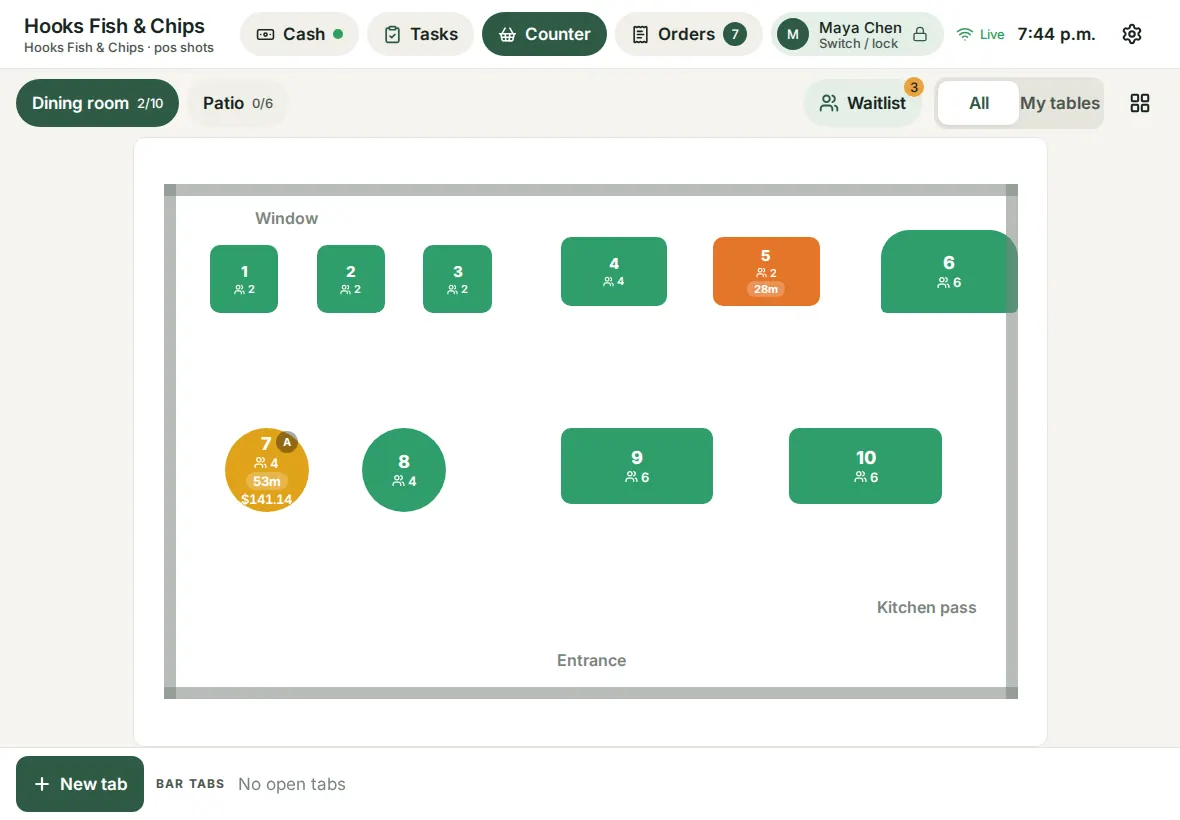
- In the dashboard, open the Table service page. On the Floor plans tab, draw your floor plan and name the tables. Use Sections to group tables.
- On the tablet in Counter POS mode, open a check for a table, add items by seat and use Fire now to send a course to the kitchen when ready.
- Keep checks open and add to them during the meal.
- Use Split to divide the bill By seat, By item or Evenly, and take payment. Transfer and Merge move a check's items to another check. A guest can pay with several gift cards: use one card after the other, and a card that was already used on that check is refused.
- Ring items in over a weak connection without worry: if a tap is sent twice because the answer got lost, the items are added only once.
- The Live floor and Reports tabs show what is open now and how service went.
Guests, offers, promo codes and rewards on a check
Automatic offers from Marketing apply to a table check by themselves, as they do at the counter, and the check shows each one by name.
- Attach a guest. Tap Guest on the check and search by phone number or email. Choose a rewards member (or a customer) to attach them: a member earns points when the check closes. You can also sign up a new member there with the guest's agreement.
- Redeem points. Once a member is attached, pick one of the rewards they can afford. The points are only spent when the check is closed, so you can remove the reward at any time.
- Promo code. Type the code. It is refused when it is unknown, expired, used up, when the check is too small, or when an automatic offer already gives the guest more.
- A big promo code or reward needs a manager's PIN, with the same limits as a manual discount, and each one is recorded in your activity log.
Change a tip after the card was charged
On the tablet, open the payments of a check (in the payment window or on the Paid screen).
- A card run on a separate terminal has an Edit tip button, for when the slip was signed with a different tip. It needs a manager's PIN and a reason, and the change is written to your activity log. It works on a closed check too.
- A payment made with a Stripe card reader or by a guest from their phone cannot be changed afterwards: these cards are charged automatically for a fixed amount. Let the guest choose the tip on the reader or on the pay page before paying. The tablet reminds you under each of those payments.
Reopen a check
A manager can reopen a paid check from the Paid screen. If cash was taken on it, that cash goes back out of the cash drawer (shown in your cash report as a refund) and the check owes its balance again, so take payment again after your changes. Card and gift card payments stay on the check.
Let guests pay from their phone
Guests scan the QR code printed on the check, see the live bill (items, discounts, service charge, taxes and what is already paid), choose to pay everything, an equal share, any amount or only the items they ordered, pick a tip and pay by card or with a gift card. The page is in English or French.
- Connect online card payments first: open Payments in the dashboard and finish setting up your payments account, then switch on card payments.
- Open Table service, then the Rules and settings tab, and switch on Let guests pay by QR code at this location. If it is greyed out, the page tells you what is missing.
- Print the check from the tablet as usual. The QR code is on the paper while something is still due.
What happens next:
- The payment shows on the check on the tablet as Paid by guest online, and your server sees a message right away. When the balance reaches zero the check closes by itself, like with cash, and the sale appears in your reports and your payment methods under online card payments.
- Tips are worked out on the amount before tax, after discounts, like the suggested tips on the check.
- Two guests can never pay the same balance: when someone starts a payment, that amount is held for them for ten minutes. When guests pick items, the items they pick are held the same way, so two people cannot pay for the same dish.
- A gift card pays right away: the guest types the code, sees what is left on it and pays. If the card holds less than the amount, the page offers to use what the card holds, and the guest pays the rest by card or with another gift card.
- If your server takes cash while a guest is paying, only what is still due is kept. The rest is refunded to the guest's card automatically and noted in your activity log.
- If some items have not been sent to the kitchen yet, the page asks the guest to call a server. A declined card simply asks the guest to try another one.
- Each split check has its own QR code.
Common questions
Does it need the Point of sale module?
Yes. Table service runs on the tablet in Counter POS mode.
Can I take a card at the table?
Yes. Guests can pay from their phone with Pay at the table, or you can choose a card reader when you take payment on a check. See Card readers.
Can I move a party to another table?
Use Transfer on the check, or Merge to combine it with another check.
Why can't I switch on pay at the table?
It needs online card payments to be connected and switched on in Payments. The setting says which step is missing.
Can I change the tip after the card was charged?
Only for a card you ran on a separate terminal: use Edit tip on the payment (a manager approves it). Payments made on a Stripe card reader or from a guest's phone are captured automatically for a fixed amount, so their tip cannot be changed afterwards. Let the guest tip on the reader or on the pay page.
Why does the reopened check owe money again?
Reopening takes the cash back out of the drawer, so the cash payments no longer count. Take payment again once the check is right.
A guest paid but the check is still open. Why?
They paid a share, or only part of the balance. The check closes when the balance reaches zero. You can take the rest with cash, a gift card or your card terminal.
Do I pay a fee on these payments?
Card payments made by QR code are processed like your other online card payments. See Payments for how fees work.